Your Cart is Empty

Your Cart is Empty

September 17, 2026 4 min read
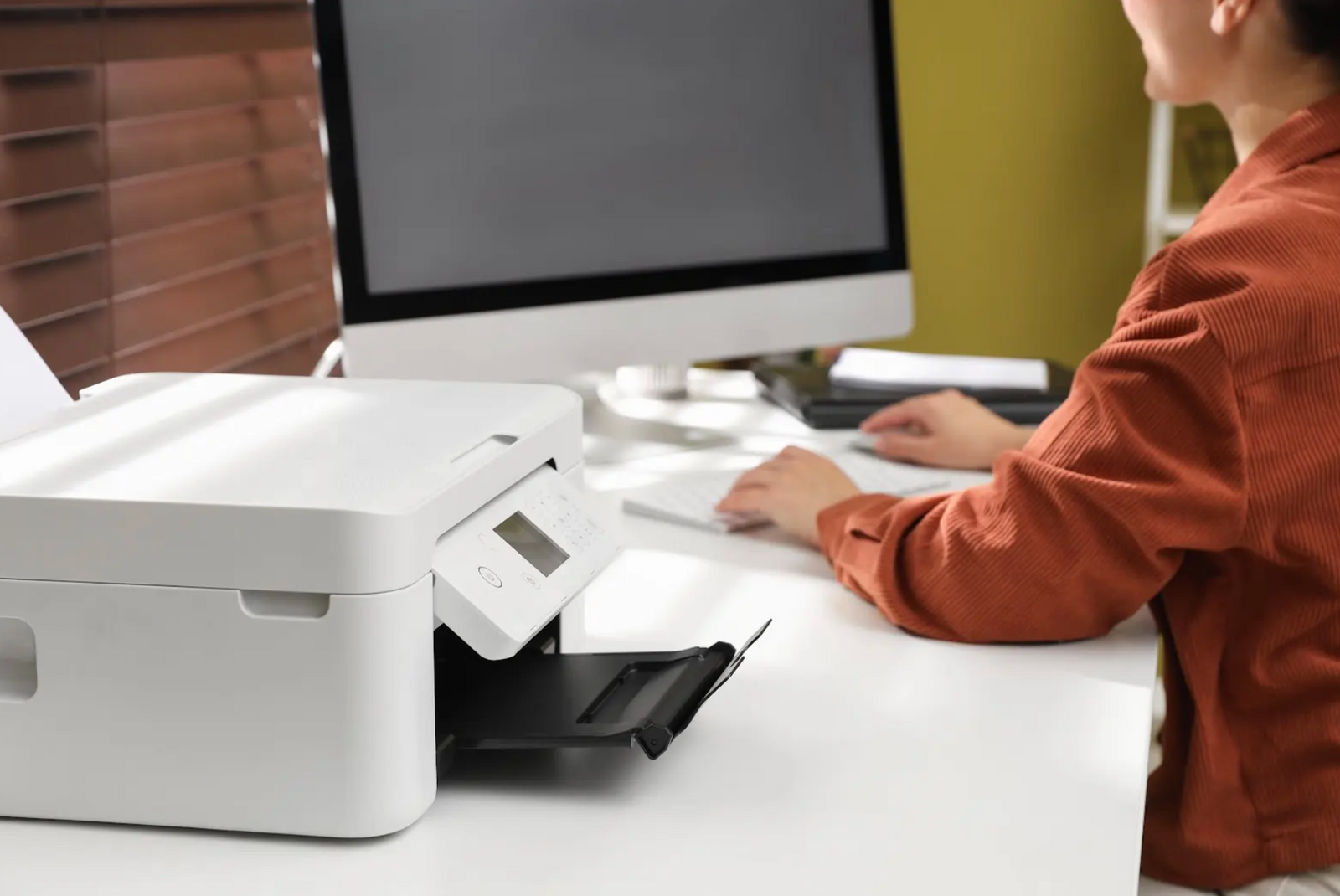
If you already have a printer in your office, there's a good chance you can use it to print QuickBooks checks. Most small businesses don't need specialized equipment.
A standard laser or inkjet printer works with the pre-printed check stock the software supports. MICR printers only come into the picture when you're adding banking information to blank stock yourself.
The printer you need depends mostly on the check stock you're using. For pre-printed checks, the equipment already in your office may be all you need. MICR capability only matters for certain blank-stock setups.
For standard printing, no. QuickBooks supports pre-printed checks with the banking information already in place. You don't need MICR capability or a hardware upgrade to add the payment details. A regular laser or inkjet printer can handle the job.
Blank MICR check stock has different requirements. QuickBooks Online doesn't natively support printing checks on blank stock. According to Intuit, you'll need QuickBooks Desktop or third-party software such as MultiCHAX, VersaCheck Gold, or PrintBoss. This method also requires a MICR-capable printer.
For most users, there's no reason to buy special equipment just for checks.
Both laser and inkjet printers work with pre-printed QuickBooks check stock. If your current inkjet feeds the paper properly and keeps the print aligned, there's no need to replace it.
For businesses that need to print checks occasionally, the printer already in use for other office documents may be sufficient. If check printing is a regular part of your workload, consistent paper feeding becomes more important. Either printer type can handle the job, so frequency alone doesn't require you to switch from inkjet to laser.
There is one reason to consider a laser printer when using Check Depot checks: Print Lock. This security feature uses a coating that bonds toner to the paper, making the printed information harder to alter after the check leaves your office.
Print Lock relies on toner, so it doesn't activate with inkjet printing. That doesn't affect the check's ability to print or function properly.
If you're already shopping for a new printer, a laser model lets you take advantage of Print Lock. Otherwise, a working inkjet is enough for standard printing.
For check printing, a few printer specifications matter more than the rest.
QuickBooks check stock comes on standard 8.5" x 11" Letter-size sheets. Check the specifications for the tray you plan to use to confirm it accepts this size.
This is a standard paper size for office printers, but it's still worth checking the tray settings before you print. The printer should recognize the loaded stock as Letter size. If another paper size is selected, the check fields may not align with their intended positions on the page.
Check that the stock is heavier than ordinary copy paper. Check Depot uses 24-lb stock, so the printer needs to accommodate that paper weight.
If the sheets jam or don't feed evenly, try a different tray. Some printers handle heavier paper better through the manual feed. You can find the weight limit for each tray in the printer specifications.
Look at how the sheet travels through the printer. A straight-through path reduces the amount of bending as heavier stock moves through, which can reduce smudging and misfeeds.
This feature can be useful when thicker sheets have trouble moving through the standard tray. If you're comparing printers, check whether the model has a manual feed or another paper path designed for heavier stock.
MICR toner only matters if you're adding the MICR information yourself through QuickBooks Desktop or compatible third-party software.
For this type of setup, confirm that the printer accepts the correct MICR toner cartridge. If you're working with pre-printed checks, you don't need MICR toner.
Next, check the PDF and print settings.
Intuit requires the latest version of Adobe Reader set as your browser's default PDF viewer. Pay close attention to margins and scaling, as both affect where the payment information appears on the page.
For the full process, see How to Print Checks in QuickBooks Online.
If the text prints too high, too low, or outside the correct fields, our guide on how to align checks in quickbooks walks through the adjustments.
First, confirm that the printer and check stock are compatible. Intuit also points to outdated browser or PDF settings as possible causes of blank or incomplete prints.
For a laser printer, check the toner cartridge and heat settings. Either can affect how well toner bonds to heavier stock.
If regular paper prints normally but check stock doesn't, compare the paper settings used for each print job.
Check the supported paper weight and the tray you're using. If your printer has a manual feed or straight-through path rated for heavier paper, try loading the stock there instead.
This issue only applies when you're adding MICR information to blank stock yourself. It doesn't apply when the banking details come pre-printed.
For the blank-stock route, confirm that you're using the correct MICR toner and compatible printer. With pre-printed checks, the MICR line is already in place before the sheet goes into your printer.
Check Depot's pre-printed QuickBooks checks work with the standard laser or inkjet printer already in your office. The banking information comes pre-printed, so there's no need to buy a separate MICR printer.
Choose the format that matches your accounting setup. From there, you can print with the equipment you already use.
Order QuickBooks-compatible checks from Check Depot, guaranteed to work with your printer.